Upgrading your PC hardware is one of the best ways to boost performance, improve gaming experiences, and extend the life of your system. Over time, even high-end computers can start to feel slow or struggle with the latest games and applications. A well-planned hardware upgrade can make your PC run faster, handle more tasks, and keep up with modern software demands. Hardware upgrades guide
Whether you’re a gamer looking for higher FPS, a content creator needing faster rendering, or someone who wants a smoother everyday computing experience, understanding which components to upgrade is essential. This guide will walk you through CPU, GPU, RAM, storage, and other key upgrades, helping you make smart decisions that match your performance needs and budget.
When to Hardware Upgrades Guide
Knowing when to upgrade your PC is just as important as knowing what to upgrade. Timing your upgrades correctly ensures you get maximum performance improvements without overspending. A strategic approach allows you to enhance your system for modern games, applications, and workflows while keeping it future-proof.
Signs It’s Time to Upgrade
- Slow Boot Times and Application Loading: If your computer takes unusually long to start or load programs, it could be a sign that your storage drive or RAM is outdated.
- Low FPS or Poor Gaming Performance: Modern games require high-performance GPUs and CPUs. Experiencing lag, stuttering, or low frame rates indicates it might be time for a GPU or CPU upgrade.
- Frequent Crashes or Freezes: Random system crashes or application freezes often point to insufficient RAM, an aging CPU, or storage issues.
- Incompatibility with New Software: If your PC can’t run the latest operating systems, apps, or games, some components may no longer meet minimum system requirements.
- High Temperatures or Overheating: Persistent overheating could mean your cooling system or CPU/GPU is no longer adequate, signaling an upgrade may be needed. Hardware Upgrades Guide
Identifying Bottlenecks
- Analyze which component is limiting performance: CPU, GPU, RAM, or storage. Hardware Upgrades Guide
- Use tools like Task Manager, MSI Afterburner, or HWMonitor to check usage and performance stats.
- Upgrading the component causing the bottleneck often delivers the most noticeable improvement without replacing the entire system.
Budget vs. Performance Needs
- Determine your upgrade priorities based on how you use your PC—gaming, productivity, or creative work.
- Sometimes a single high-impact upgrade (like a GPU for gaming or SSD for faster storage) can significantly improve performance more than upgrading multiple smaller components. Hardware Upgrades Guide
- Plan your upgrades to balance cost, performance gain, and future-proofing, so you get the best value for your money.
Future-Proofing Considerations
- Consider investing in components that will remain relevant for several years. Hardware Upgrades Guide
- Look for hardware that supports next-gen technologies, such as DDR5 RAM, PCIe 5.0 SSDs, or Wi-Fi 6/7 networking.
- Future-proof upgrades reduce the need for frequent replacements and ensure your system keeps up with software and game demands. Hardware Upgrades Guide
By recognizing these signs, identifying bottlenecks, and planning your upgrades according to your budget and needs, you can maximize your PC’s performance, longevity, and overall user experience. Hardware Upgrades Guide
CPU Upgrades
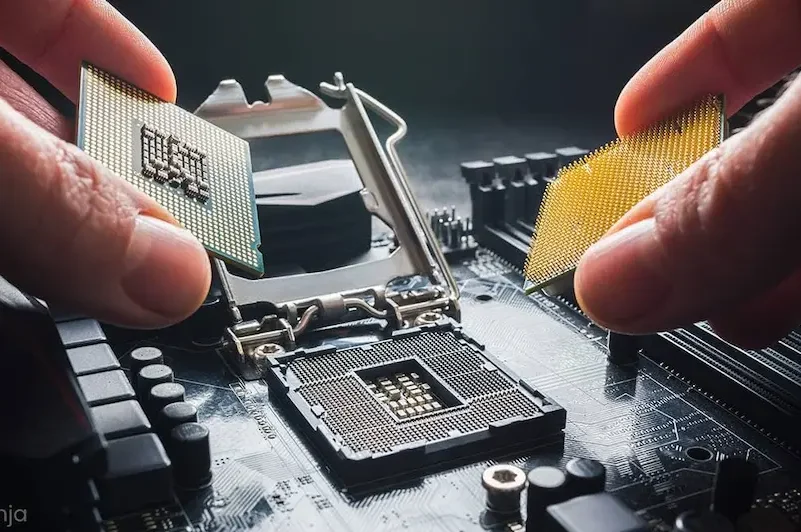
The CPU (Central Processing Unit) is the core component that controls how fast and efficiently your computer performs tasks. A CPU upgrade can significantly improve system speed, multitasking, gaming performance, and productivity, especially if your current processor is several generations old. Hardware Upgrades Guide
When You Should Upgrade Your CPU
A CPU upgrade is recommended when your system struggles even after upgrading RAM or storage, when you notice constant high CPU usage during normal tasks, or when modern games and software fail to run smoothly. If applications take too long to open, rendering or exporting files is slow, or your PC feels unresponsive under load, your processor may be the main bottleneck.
Understanding Core Count and Clock Speed
Choosing the right CPU depends on how you use your PC. CPUs with higher clock speeds perform better in gaming and everyday tasks, while processors with more cores and threads are ideal for multitasking, streaming, video editing, and professional workloads. A balanced CPU with strong single-core and multi-core performance offers the best overall experience for most users.
Latest CPU Generations and Features
Modern CPUs offer major improvements over older models, including better performance per watt, advanced power efficiency, and support for new technologies like DDR5 RAM and PCIe 5.0. Many newer processors also include AI-enhanced features that optimize performance automatically based on workload, making systems faster and more responsive. Hardware Upgrades Guide
Motherboard and Compatibility Checks
Before upgrading your CPU, always check motherboard compatibility. Different CPUs require specific socket types and chipsets, and some upgrades may need a BIOS update. In many cases, upgrading to a newer CPU generation may also require a new motherboard and newer RAM, so planning ahead helps avoid unexpected costs. Hardware Upgrades Guide
Cooling and Power Requirements
Newer CPUs often generate more heat, especially under heavy workloads. A reliable air cooler or liquid cooling solution ensures stable performance and prevents overheating. It’s also important to confirm that your power supply provides enough wattage and quality to support the new processor. Hardware Upgrades Guide
Performance Benefits of a CPU Upgrade
A CPU upgrade results in faster application launches, smoother multitasking, improved gaming performance in CPU-heavy titles, and better efficiency for creative and professional software. It also extends your PC’s lifespan, allowing it to keep up with future updates and demanding applications. Hardware Upgrades Guide
you may also like to read these posts;
Smart Home Gadgets Review 2026: Top Devices for Convenience & Security
New Wearable Technology Trends 2026: Top Devices for Health & Productivity
Top Budget Gadgets for Students 2026: Affordable Tech for Study & Productivity
Innovative Gadget Reviews 2026: Top Smart Devices You Need to Know
Gadget Buying Guide 2026: How to Choose the Best Devices for Your Needs
GPU Upgrades
The GPU (Graphics Processing Unit) is one of the most important components for gaming, video editing, 3D rendering, and graphic-intensive tasks. Upgrading your GPU can deliver the biggest performance boost, especially if you play modern games or work with creative software. Hardware Upgrades Guide
When a GPU Upgrade Is Needed
A GPU upgrade becomes necessary when games run at low frame rates, graphics settings must be reduced, or creative applications struggle with rendering and previews. If you notice screen tearing, stuttering, or long render times, your graphics card may be outdated. New games and software also require more VRAM and advanced GPU features, making upgrades essential over time.
Choosing the Right GPU for Your Needs
Selecting the right GPU depends on how you use your PC. Gamers should focus on GPUs that deliver high FPS at their target resolution, while content creators benefit from GPUs with more VRAM and strong compute performance. Casual users may prefer mid-range GPUs that balance cost and performance. Choosing a GPU that matches your monitor’s resolution and refresh rate ensures the best experience. Hardware Upgrades Guide
Compatibility and System Requirements
Before upgrading, check your system’s compatibility. Ensure your power supply provides enough wattage, your PC case has sufficient space, and your motherboard supports the GPU interface. Modern GPUs may also require additional power connectors, so verifying PSU connections is essential. Hardware Upgrades Guide
Cooling and Airflow Considerations
High-performance GPUs generate significant heat under load. Proper case airflow and efficient cooling help maintain stable performance and prevent thermal throttling. Investing in a case with good ventilation or adding extra fans can improve GPU temperatures and lifespan. Hardware Upgrades Guide
Benefits of Upgrading Your GPU
A GPU upgrade improves gaming performance with higher FPS, smoother visuals, and better graphics quality. It also speeds up video editing, 3D rendering, and AI-based workloads. Modern GPUs support advanced features like ray tracing, upscaling technologies, and better driver optimization, providing a more immersive and future-ready experience. Hardware Upgrades Guide
RAM Upgrades
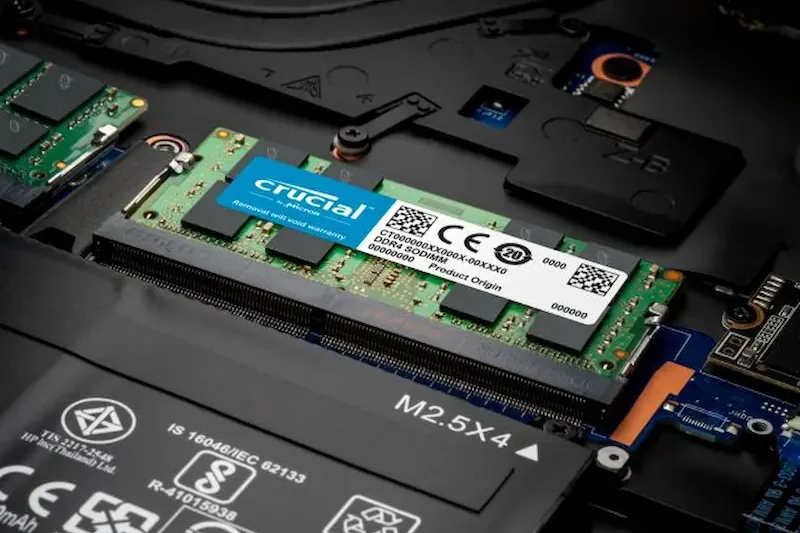
RAM (Random Access Memory) is essential for smooth system performance, fast multitasking, and efficient application handling. If your PC slows down when multiple programs are open or struggles with modern software, a RAM upgrade can provide an immediate and noticeable performance boost without high cost. Hardware Upgrades Guide
When a RAM Upgrade Is Necessary
You should consider upgrading RAM if your computer becomes slow during multitasking, applications freeze or lag, or your system frequently relies on virtual memory. Low RAM can also cause stuttering in games, longer load times, and reduced performance in editing or design software.
How Much RAM Do You Need
The ideal amount of RAM depends on your usage. For everyday tasks and basic computing, 8GB is the minimum. 16GB is recommended for gaming and smooth multitasking, while 32GB or more is ideal for video editing, 3D rendering, and professional workloads. Having sufficient RAM ensures your system can handle future software updates comfortably.
Choosing the Right RAM Type
Modern systems support DDR4 or DDR5 RAM, and choosing the correct type depends on your motherboard. DDR5 offers higher speeds, better efficiency, and improved performance compared to DDR4, making it a good choice for future-proof systems. Always check motherboard compatibility before purchasing RAM.
Memory Speed and Channel Configuration
RAM speed and configuration significantly impact performance. Faster memory improves system responsiveness, especially in gaming and productivity tasks. Using dual-channel or quad-channel configurations allows RAM modules to work together, increasing bandwidth and delivering better performance than a single module setup.
Benefits of a RAM Upgrade
Upgrading RAM results in smoother multitasking, faster application loading, improved gaming performance, and better system stability. It also reduces reliance on slow storage-based virtual memory, making your PC feel more responsive and reliable.
A well-planned RAM upgrade helps extend your PC’s lifespan and ensures it can handle modern applications, games, and future demands with ease
Which hardware upgrade gives the biggest performance boost?
It depends on how you use your PC. For general users, upgrading to an SSD or NVMe drive delivers the fastest improvement in boot and load times. For gamers, a GPU upgrade usually provides the biggest performance boost, while content creators benefit most from CPU and RAM upgrades.
How often should I upgrade my PC hardware?
Most users upgrade their hardware every 3–5 years, depending on performance needs and software demands. Regular upgrades to RAM or storage can extend your system’s life without replacing all components.
Can I upgrade one component at a time?
Yes, upgrading one component at a time is a smart approach. Starting with high-impact upgrades like storage, RAM, or GPU allows you to improve performance gradually while managing your budget effectively.
Conclusion
Upgrading your PC hardware is a smart and cost-effective way to improve performance, extend your system’s lifespan, and keep up with modern software and games. By identifying performance bottlenecks and upgrading the right components—such as the CPU, GPU, RAM, or storage—you can achieve noticeable improvements without replacing your entire system.
A successful hardware upgrade starts with understanding your needs and budget. Gamers may benefit most from GPU upgrades, while content creators and professionals often see better results from stronger CPUs, more RAM, and faster storage. Compatibility checks, proper cooling, and a reliable power supply are also essential for smooth and stable performance.