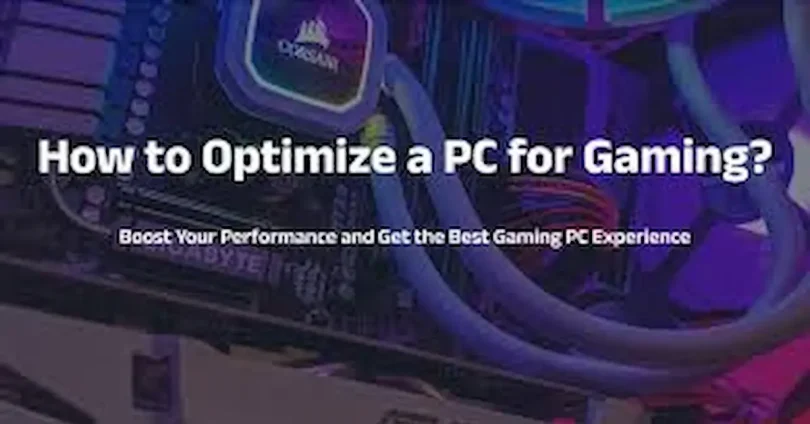

A fast and well-optimized gaming PC makes all the difference between smooth, immersive gameplay and frustrating lag or stuttering. Whether you’re playing competitive shooters, open-world adventures, or high-end AAA games, performance matters. Slow load times, low FPS, and unexpected freezes can ruin the gaming experience. Improve gaming PC speed
The good news is that you don’t always need expensive upgrades to improve your gaming PC’s speed. By optimizing software, managing resources, and performing simple maintenance, you can boost your PC’s performance, reduce lag, and enjoy smoother gameplay.
In this guide, we’ll cover practical tips and easy-to-follow steps to help you enhance your gaming PC speed, including updating Windows and drivers, cleaning your hard drive, optimizing RAM and virtual memory, managing background apps, improving cooling, and more. These strategies are suitable for both beginners and experienced gamers who want to get the most out of their PC.
Keep Windows and Drivers Updated
Why Updates Are Critical for Gaming PC Speed
Keeping your Windows operating system and drivers up to date is one of the simplest yet most effective ways to improve gaming performance. Updates often include game-specific optimizations, bug fixes, security patches, and performance improvements. Without regular updates, your PC may experience slowdowns, crashes, stuttering, or compatibility issues with new games.
Step 1: Update Windows Regularly
- Press Windows + I to open Settings
- Navigate to Update & Security > Windows Update
- Click Check for updates and install any pending updates
- Turn on automatic updates so your PC always has the latest improvements
- Tip: Enable optional updates for drivers and feature enhancements, which can improve gaming performance
Step 2: Keep Your GPU Drivers Current
- Your GPU is the heart of gaming performance, and outdated drivers can cause low FPS, screen tearing, or crashes
- NVIDIA users: Install GeForce Experience and enable automatic game-ready driver updates
- AMD users: Use Radeon Software for automatic updates and optimization tools
- Benefits: Access the latest game-specific tweaks, enhanced graphics, and smoother gameplay
Step 3: Update Other Key Drivers
- Update drivers for:
- Motherboard/chipset (ensures CPU and RAM perform optimally)
- Network adapters (prevents lag in online games)
- Audio drivers (reduces sound glitches)
- Peripheral devices like gaming mice or keyboards
- Use manufacturer tools like Intel Driver & Support Assistant or official PC/laptop websites
- Keeping all drivers updated ensures stability, smooth multitasking, and improved in-game performance
Step 4: Automate Driver Updates
- Enable Windows Device Manager auto-update for minor drivers
- Consider software like Driver Booster or official GPU software for one-click updates
- Automation reduces the chance of missing critical updates and keeps your PC optimized
Step 5: Benefits of Regular Updates
- Higher FPS and smoother gameplay
- Fewer crashes, freezes, or errors
- Better compatibility with new games and software
- Enhanced security, preventing malware or vulnerabilities that can slow your system
By consistently updating Windows and all drivers, your gaming PC stays fast, stable, and ready for new games, ensuring a smooth and enjoyable gaming experience.
Optimize Startup Programs and Background Apps
Why This Matters for Gaming Speed
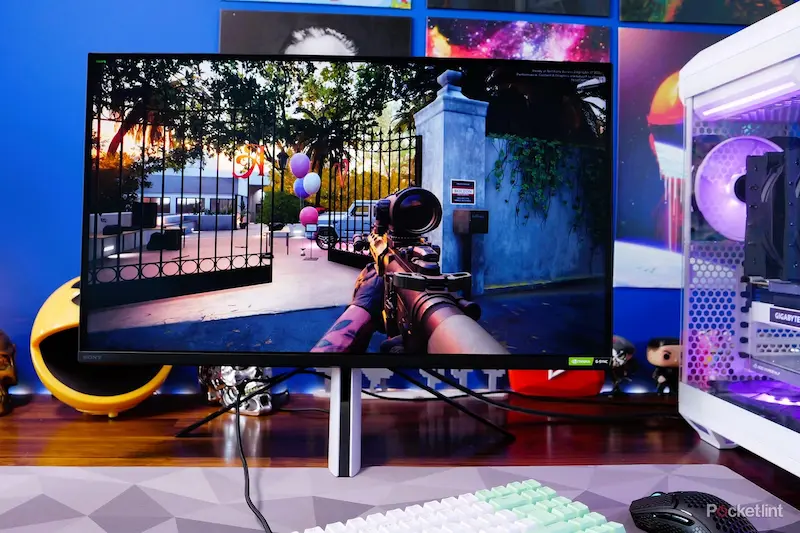
Many programs automatically start when you boot your PC. While some are necessary, too many startup programs or background apps consume RAM and CPU, leaving fewer resources for games. Optimizing these settings can boost gaming performance, reduce lag, and speed up load times.
Step 1: Identify Startup Programs
- Press Ctrl + Shift + Esc to open Task Manager
- Click the Startup tab to view programs that launch at startup
- Check the Startup impact column to see which apps use the most resources
- Common resource-heavy apps: cloud storage (Google Drive, OneDrive), chat apps (Teams, Discord), update utilities
Step 2: Disable Unnecessary Startup Programs
- Right-click programs you don’t need immediately and select Disable
- Keep essential programs enabled (antivirus, system utilities)
- Example: Disabling Dropbox from startup will free RAM without affecting normal usage
Step 3: Close Background Apps While Gaming
- Open Task Manager > Processes to see running apps
- Close programs consuming high CPU, GPU, or memory
- Tip: Web browsers, streaming apps, and software updaters can slow gaming performance
Step 4: Use Windows Game Mode
- Go to Settings > Gaming > Game Mode
- Turn on Game Mode to prioritize gaming performance
- Windows will limit background tasks and allocate resources to your game
Step 5: Benefits of Optimizing Startup and Background Apps
- Faster boot times and quicker system readiness
- More available RAM and CPU power for games
- Reduced stuttering, lag, and crashes during gameplay
- Overall smoother gaming experience
By regularly managing startup programs and closing unnecessary background apps, your PC will dedicate more resources to gaming, ensuring higher FPS, faster load times, and smoother performance. Improve Gaming PC Speed
you may also like to read these posts;
Smart Home Gadgets Review 2026: Top Devices for Convenience & Security
New Wearable Technology Trends 2026: Top Devices for Health & Productivity
Top Budget Gadgets for Students 2026: Affordable Tech for Study & Productivity
Innovative Gadget Reviews 2026: Top Smart Devices You Need to Know
Gadget Buying Guide 2026: How to Choose the Best Devices for Your Needs
Clean Your Hard Drive Improve Gaming PC Speed
Why Cleaning Your Hard Drive Boosts Gaming Performance
As you use your PC, it gradually accumulates temporary files, cache data, downloads, unused programs, and fragmented game files. These unnecessary files can slow down your system, reduce FPS, increase game load times, and cause stuttering. Regular hard drive maintenance ensures your PC runs faster, smoother, and more efficiently. Improve Gaming PC Speed
Step 1: Remove Temporary Files and System Cache
Press Windows + R, type %temp%, and hit Enter. Delete all files in the folder (these are safe to remove). Use Disk Cleanup for a thorough cleanup: search Disk Cleanup in the Start menu, select your system drive (usually C:), check items like Temporary Files, Recycle Bin, and System Cache, and click Clean up system files to remove additional unnecessary files. Tip: Perform this at least once a month for optimal performance. Improve Gaming PC Speed
Step 2: Uninstall Unused Programs and Games
Go to Settings > Apps > Apps & Features, sort by size or last used, and uninstall programs or games you no longer play or need. Benefits include freeing up storage, reducing background resource usage, and preventing clutter that can slow down your PC.
Step 3: Organize and Optimize Game Files
Move large game files to an SSD instead of an HDD for faster load times. Keep your game library organized in folders to make game management easier. Avoid storing too many files on your desktop, which can slow down the system. Use game clients like Steam, Epic Games, or Origin to manage game installations efficiently. Improve Gaming PC Speed
Step 4: Enable and Configure Storage Sense
Go to Settings > System > Storage and turn on Storage Sense to automatically remove temporary files, old downloads, and unused files in Recycle Bin. Configure frequency and file types to match your gaming habits. Tip: This ensures your PC is automatically optimized without manual intervention. Improve Gaming PC Speed
Step 5: Defragment Hard Drives (HDD Only)
If you use a traditional HDD, defragmentation can improve read/write speeds. Go to Defragment and Optimize Drives, select the HDD, and click Optimize. Note: SSDs do not require defragmentation; Windows automatically handles performance optimizations for SSDs. Improve Gaming PC Speed
Step 6: Benefits of Regular Hard Drive Cleaning
Frees storage space for new games and updates, improves game load times and reduces stuttering, keeps your PC running fast and responsive, helps prevent crashes caused by cluttered drives, and makes system and file management simpler and more efficient.
Optimize RAM and Virtual Memory
Why Optimizing RAM Improves Gaming Speed
RAM (Random Access Memory) is crucial for gaming because it stores temporary data for running applications and games. If your PC runs out of available RAM, it will rely on slower storage (virtual memory), which can cause lag, stuttering, and slower load times. Optimizing RAM and virtual memory ensures games run smoothly and efficiently. Improve Gaming PC Speed
Step 1: Check RAM Usage
Press Ctrl + Shift + Esc to open Task Manager and go to the Performance tab. Check how much RAM is being used while your system is idle and while running other applications. Identify memory-heavy apps that may slow your games. Improve Gaming PC Speed
Step 2: Close Unnecessary Programs
Before gaming, close apps that consume high memory, such as browsers with many tabs, streaming software, or editing tools. This frees up RAM and improves game performance. Improve Gaming PC Speed
Step 3: Adjust Virtual Memory (Page File)
Go to Settings > System > About > Advanced System Settings > Performance > Advanced > Virtual Memory. Increase the page file size or set it to be managed by Windows to ensure there’s enough virtual memory when RAM is fully used. Proper virtual memory reduces lag during high-demand gaming. Improve Gaming PC Speed
Step 4: Upgrade RAM if Needed
If your system frequently runs out of RAM during gaming, consider adding more. Modern games typically benefit from 16GB of RAM, while heavier applications may require 32GB for optimal performance. Improve Gaming PC Speed
Step 5: Benefits of Optimizing RAM
Frees up memory for games, reduces stuttering and lag, improves FPS, allows smoother multitasking, and prevents system slowdowns during intense gaming sessions. Improve Gaming PC Speed
Upgrade or Optimize Your GPU
Why the GPU Matters for Gaming Speed
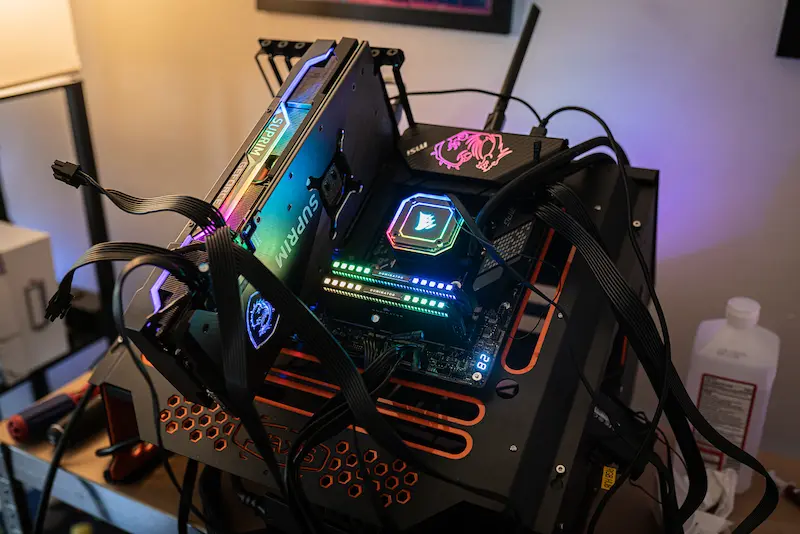
The GPU (Graphics Processing Unit) handles all the graphics rendering for games. A powerful and well-optimized GPU ensures higher FPS, smoother gameplay, and better visual quality. Even minor tweaks can improve performance without buying a new card. Improve Gaming PC Speed
Step 1: Keep GPU Drivers Updated
Outdated drivers can cause stuttering, crashes, or low FPS. For NVIDIA GPUs, use GeForce Experience to update drivers automatically. For AMD GPUs, use Radeon Software. Updated drivers often include game-specific optimizations for the latest releases. Improve Gaming PC Speed
Step 2: Adjust GPU Settings
Open your GPU control panel and optimize settings for performance. For example, lower power-saving modes, adjust texture quality, or enable performance presets. Many games benefit from these adjustments without noticeable visual loss. Improve Gaming PC Speed
Step 3: Monitor GPU Usage and Temperature
Use tools like MSI Afterburner or HWMonitor to check GPU usage and temperature. High temperatures can lead to thermal throttling, reducing performance. Ensure adequate cooling and clean your GPU fans if needed. Improve Gaming PC Speed
Step 4: Overclocking (Optional)
Advanced users can safely overclock their GPU to gain extra FPS. Overclocking increases clock speed and performance but must be monitored carefully to avoid overheating. Always use monitoring tools and increase speeds gradually. Improve Gaming PC Speed
Step 5: Upgrade Your GPU if Needed
If your GPU is old or underpowered, upgrading can provide a massive performance boost. Modern AAA games often require high-end GPUs for smooth 1080p or 4K gaming. Consider your budget and game requirements before upgrading. Improve Gaming PC Speed
Step 6: Benefits of Optimizing Your GPU
Higher FPS, smoother graphics, reduced stuttering, improved game stability, and better visual quality. Proper optimization ensures your GPU performs efficiently and reliably during gaming sessions. Improve Gaming PC Speed
How often should I optimize my gaming PC?
Basic optimization like closing background apps, cleaning temporary files, and checking updates can be done weekly or monthly. More thorough maintenance like driver updates, disk cleanup, and RAM/virtual memory checks can be done every 2–3 months.
Can beginners improve gaming speed without upgrading hardware?
Yes. Many speed improvements come from software optimization, managing startup programs, cleaning drives, and adjusting settings, which don’t require new hardware.
Will these tips improve FPS in all games?
Most games benefit from these optimizations, especially resource-heavy or older PCs. However, extremely demanding games may still require hardware upgrades for maximum performance.
Conclusion:
Improving your gaming PC’s speed doesn’t always require expensive upgrades. By following simple steps like keeping Windows and drivers updated, optimizing startup programs and background apps, cleaning your hard drive, optimizing RAM and virtual memory, and properly managing your GPU and storage, you can achieve smoother gameplay, higher FPS, and faster load times.
Regular maintenance, monitoring temperatures, and scanning for malware ensure your system remains stable, responsive, and secure. Optional steps like overclocking or upgrading hardware can further enhance performance for more demanding games.
By consistently applying these tips, you can enjoy a high-performing, reliable, and lag-free gaming experience, making your PC ready for both current and upcoming games.