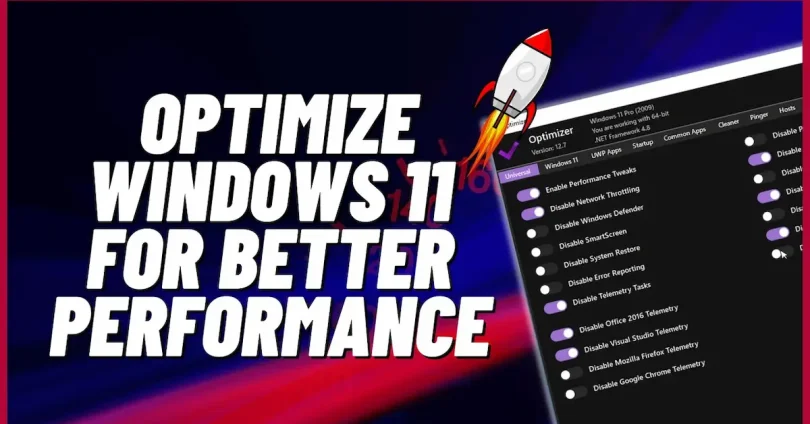

A slow Windows PC can be frustrating, whether you are working, gaming, or just browsing the internet. Over time, your system may start taking longer to boot, programs may lag, and overall performance can drop. Optimizing Windows performance is essential to keep your PC running smoothly, reduce delays, and make your daily tasks more efficient.
Optimizing your PC doesn’t have to be complicated. With a few simple steps, you can clean up storage, manage startup programs, update drivers, and tweak settings to get noticeable speed improvements. This guide will walk you through easy, practical tips to boost your Windows performance, improve multitasking, and extend the life of your PC. By following these steps, even beginners can make their system faster and more reliable. Optimize Windows performance
Keep Windows Updated Optimize Windows Performance
Why Updates Matter
Windows updates are more than just new features—they include performance improvements, bug fixes, and security patches. Keeping your system up to date helps prevent crashes, slowdowns, and compatibility issues with software and hardware.
How to Check for Updates
- Press Windows + I to open Settings.
- Go to Update & Security > Windows Update.
- Click Check for updates to see if new updates are available.
Enable Automatic Updates
To make sure your PC always stays optimized, enable automatic updates:
- In Windows Update, turn on automatic updates.
- Your PC will download and install updates in the background, reducing manual effort.
Tips After Updates
- Sometimes updates can temporarily slow down your PC. Restarting your system usually fixes this.
- Major updates may require a little extra disk space, so check storage before installing.
- Keep drivers updated after Windows updates to ensure optimal performance.
By keeping Windows up to date, you ensure your system runs smoothly, securely, and efficiently, making it the first step in optimizing your PC performance.
Clean Up Your Hard Drive
Why Cleaning Your Hard Drive Matters
Over time, your Windows PC collects temporary files, cached data, logs, and unused programs. These unnecessary files take up space, slow down file access, and can reduce overall system performance. Regularly cleaning your hard drive helps your PC run faster, boot quicker, and maintain smooth operation.
Delete Temporary and Junk Files
Windows and applications create temporary files that are not always automatically removed. You can free up space by:
- Pressing Windows + R, typing
%temp%, and deleting all files in the folder. Optimize Windows Performance - Using Disk Cleanup: search for it in the Start menu, select your drive, and check all unnecessary file types to delete.
- Clearing browser cache and cookies regularly to speed up internet browsing. Optimize Windows Performance
Uninstall Programs You Don’t Use
Many PCs come with preinstalled apps (bloatware) or programs you no longer need. Removing them can free up space and reduce background resource usage:
- Go to Control Panel > Programs > Uninstall a program and remove apps you rarely use. Optimize Windows Performance
- For Windows 10/11, you can also go to Settings > Apps > Apps & features to uninstall software. Optimize Windows Performance
Organize Your Files
Keeping files well-organized improves system efficiency:
- Store large files like videos, music, and photos in separate folders or drives. Optimize Windows Performance
- Avoid cluttering the desktop, as each icon consumes memory and slows down startup. Optimize Windows Performance
- Consider moving rarely used files to external storage or cloud services like OneDrive, Google Drive, or Dropbox.
Remove Duplicate and Old Files
Duplicate files take up unnecessary space. Tools like CCleaner or Duplicate Cleaner can help you safely identify and remove duplicates. Also, check for old downloads and documents that you no longer need. Optimize Windows Performance
Manage Large Files
- Identify large files taking up space using Storage settings: go to Settings > System > Storage > Show more categories.
- Move or delete files you don’t need immediately to free up space. Optimize Windows Performance
- For gamers, uninstall old games that are no longer played—they often take up tens of gigabytes.
HDD Defragmentation (For Traditional Drives)
If you are using a hard disk drive (HDD), defragmenting reorganizes fragmented files, making access faster:
- Search for Defragment and Optimize Drives in the Start menu. Optimize Windows Performance
- Select your HDD and click Optimize. Optimize Windows Performance
(Note: Do not defragment SSDs—they use a different technology and defragmentation is unnecessary.)
Enable Storage Sense (Optional)
Windows 10/11 includes Storage Sense, which automatically deletes temporary files, Recycle Bin items, and old downloads:
- Go to Settings > System > Storage > Storage Sense and turn it on. Optimize Windows Performance
- Customize it to run automatically or manually, depending on your preference. Optimize Windows Performance
By following these steps regularly, you can keep your hard drive clean, maintain free space, and improve overall Windows performance. A well-maintained drive is the foundation of a fast and responsive PC. Optimize Windows Performance
you may also like to read these posts;
Smart Home Gadgets Review 2026: Top Devices for Convenience & Security
New Wearable Technology Trends 2026: Top Devices for Health & Productivity
Top Budget Gadgets for Students 2026: Affordable Tech for Study & Productivity
Innovative Gadget Reviews 2026: Top Smart Devices You Need to Know
Gadget Buying Guide 2026: How to Choose the Best Devices for Your Needs
Manage Startup Programs
Why Startup Programs Matter
When you turn on your Windows PC, many programs automatically start in the background. While some are necessary, having too many startup programs can slow down boot time, consume memory, and reduce overall system performance. Over time, even minor apps like chat software, cloud sync tools, and game launchers can pile up, making your PC feel sluggish from the moment it boots.
Identify Unnecessary Startup Programs
- Press Ctrl + Shift + Esc to open Task Manager.
- Click the Startup tab to see all programs that run when your PC starts. Optimize Windows Performance
- Look at the Startup impact column—programs labeled High can significantly affect boot time.
- Take note of apps you rarely use or don’t need immediately after startup. Optimize Windows Performance
Disable Programs Safely
- Right-click on unnecessary programs and select Disable. Optimize Windows Performance
- Disabling prevents them from running at startup but does not uninstall the program. Optimize Windows Performance
- Essential apps like antivirus software, GPU drivers, or cloud sync tools should generally remain enabled.
Recommended Programs to Keep Enabled
- Antivirus and security software Optimize Windows Performance
- Drivers and utility programs for hardware (GPU, motherboard)
- Cloud storage apps if you actively use file syncing Optimize Windows Performance
All other apps, like game launchers, chat apps, or software you rarely use, can be disabled safely.
Use Windows Settings for Easy Management
- Open Settings > Apps > Startup to see a simple toggle list of startup programs.
- Turn programs on or off with a single click, making it easy for beginners to manage startup apps.
- Windows will show the startup impact to help you decide which apps to disable.
Extra Tips for Better Performance
- Review your startup programs regularly—especially after installing new software. New apps often add themselves to startup automatically.
- Be cautious with system-critical apps—disabling essential Windows services or drivers can cause errors or instability.
- Combine with Disk Cleanup—reducing startup programs alongside clearing unnecessary files creates the biggest performance boost.
- Use Task Manager for monitoring—check CPU and memory usage while your PC starts to see which apps consume the most resources.
The Benefits of Managing Startup Programs
- Faster boot times and reduced wait time when starting your PC
- More free memory for programs and tasks after startup
- Smoother overall Windows performance and fewer slowdowns
By carefully managing startup programs, even beginners can significantly improve boot speed and system responsiveness, making Windows feel faster and more efficient from the moment you turn it on.
Optimize RAM and Virtual Memory
Why RAM Matters
RAM (Random Access Memory) is the part of your PC that stores data temporarily while programs are running. More RAM allows your PC to multitask smoothly and prevents slowdowns when using multiple applications. If your PC has insufficient RAM, Windows may lag, freeze, or respond slowly.
Check RAM Usage
- Press Ctrl + Shift + Esc to open Task Manager.
- Go to the Performance > Memory tab to see how much RAM is being used.
- Identify programs that consume a lot of memory, especially if they are running unnecessarily in the background.
Close Memory-Hogging Programs
- Close apps you aren’t using to free up RAM.
- Avoid running too many heavy applications simultaneously (e.g., multiple browser tabs, video editors, and games at the same time).
Increase Virtual Memory (Page File)
Virtual memory allows Windows to use a portion of your hard drive as extra RAM when physical RAM is full:
- Press Windows + R, type
sysdm.cpl, and press Enter. - Go to the Advanced > Performance > Settings tab.
- Click Advanced > Virtual memory > Change.
- Uncheck “Automatically manage,” select your system drive, and set a custom size (usually 1.5× to 2× your RAM).
- Click Set, then OK and restart your PC.
Upgrade Physical RAM
If your PC still runs slowly after optimizing virtual memory, consider adding more RAM. Modern PCs benefit from at least 8GB for basic use and 16GB or more for gaming and multitasking. Upgrading RAM is one of the most effective ways to improve performance.
Tips for Smooth RAM Management
- Regularly check Task Manager for high-memory apps.
- Close background apps you rarely use.
- Avoid browser extensions that consume excessive RAM.
- Restart your PC occasionally to clear memory leaks.
Benefits of Optimizing RAM and Virtual Memory
- Faster program loading and smoother multitasking
- Reduced lag during heavy tasks like gaming or video editing
- Better overall system responsiveness and stability
By monitoring RAM usage and adjusting virtual memory, you can maximize your PC’s performance without spending a lot of money, ensuring Windows runs smoothly even under heavy workloads.
Update Drivers
Why Updating Drivers Matters
Drivers are software programs that allow Windows to communicate with your PC’s hardware, such as the GPU, motherboard, sound card, and network adapters. Outdated or missing drivers can cause slow performance, crashes, poor graphics, and connectivity issues. Keeping drivers updated ensures your system runs smoothly and efficiently.
Check for Outdated Drivers
- Press Windows + X and select Device Manager.
- Expand each category (e.g., Display adapters, Network adapters) to see your hardware.
- Right-click a device and select Properties > Driver to check the version and date.
How to Update Drivers Manually
- Go to the manufacturer’s website (e.g., NVIDIA, AMD, Intel) for your hardware.
- Download the latest driver version compatible with your device and Windows version.
- Install the driver following the instructions and restart your PC if needed.
How to Update Drivers Automatically
- Use Windows Update: go to Settings > Update & Security > Windows Update > Check for updates.
- Some hardware manufacturers provide tools like NVIDIA GeForce Experience or Intel Driver & Support Assistant to automatically detect and install updates.
Focus on Key Drivers
- GPU Drivers: Crucial for gaming, video editing, and graphics-intensive tasks.
- Motherboard/Chipset Drivers: Improve system stability and communication between components.
- Network Drivers: Ensure fast and stable internet connections.
- Audio Drivers: Fix sound issues and improve media playback.
Tips for Safe Driver Updates
- Create a restore point before updating drivers in case of issues.
- Avoid third-party driver update software that isn’t trusted; they can cause problems.
- Restart your PC after each major driver update to apply changes properly.
Benefits of Keeping Drivers Updated
- Improved system stability and fewer crashes
- Enhanced gaming and graphics performance
- Faster hardware response and better multitasking
- Reduced compatibility issues with new software
Regularly updating your drivers is a simple but effective way to boost Windows performance, prevent errors, and make sure your PC hardware works optimally.
Does optimizing Windows really make a difference?
Yes. Simple optimizations like cleaning up storage, managing startup programs, updating drivers, and adjusting visual effects can significantly speed up your PC, reduce lag, and improve responsiveness.
How often should I optimize my PC?
For most users, performing basic optimization every 1–2 months is sufficient. Regular updates, cleanup, and monitoring prevent performance slowdowns over time.
can I optimize Windows without third-party tools?
Absolutely. Windows has many built-in tools like Disk Cleanup, Task Manager, Storage Sense, and Performance Monitor that help optimize your system safely without extra software.
Conclusion:
Optimizing your Windows PC doesn’t have to be complicated. By following simple steps like keeping Windows updated, cleaning your hard drive, managing startup programs, optimizing RAM and virtual memory, updating drivers, and adjusting visual effects, you can significantly improve speed, stability, and overall performance.
Regular maintenance not only makes your PC faster but also helps prevent crashes, reduces lag, and extends the lifespan of your system. Combining these software optimizations with occasional hardware upgrades, like adding more RAM or using an SSD, can deliver an even greater performance boost.
Remember, consistency is key. Perform these optimizations periodically, monitor your system, and be mindful of unnecessary apps or files. With these practices, even beginners can enjoy a smoother, faster, and more reliable Windows experience every day.