
In 2026, PCs remain an essential tool for work, gaming, learning, and daily tasks. However, over time, even the fastest computers can slow down, crash, or face security risks if they are not properly maintained. Regular PC maintenance is the key to keeping your system fast, secure, and reliable. PC maintenance guide 2026
This guide will walk you through the most important PC maintenance tips for 2026, including updating Windows and software, cleaning your hard drive, managing startup programs, optimizing RAM, updating drivers, scanning for malware, and backing up your data. By following these steps, you can prevent problems before they occur, extend your PC’s lifespan, and ensure smooth performance for years to come.
Whether you’re a beginner or an experienced user, these tips are easy to follow and highly effective, helping you keep your PC in top condition without unnecessary stress or costly repairs.
Keep Windows and Software Updated
Why Updates Matter
Keeping your Windows operating system and software up to date is one of the easiest ways to maintain PC performance and security. Updates fix bugs, patch security vulnerabilities, and improve compatibility with new programs and hardware. Without regular updates, your PC can slow down, crash, or even become vulnerable to malware.
Step 1: Enable Automatic Windows Updates
- Open Settings > Update & Security > Windows Update
- Click Check for updates to install any pending updates
- Turn on automatic updates so your PC stays up to date without manual effort
- Optional: Enable optional updates for drivers and feature improvements
Step 2: Update Installed Software
- Regularly check for updates in programs you use often (browsers, office apps, media software)
- Many applications have an “Update” option in the settings or menu
- Consider enabling automatic updates within apps if available
Step 3: Benefits of Keeping Everything Updated
- Improved security: Protects against malware, viruses, and cyber attacks
- Better performance: Fixes bugs and ensures smoother operation
- Enhanced compatibility: Keeps software and hardware working together efficiently
- New features: Gain access to the latest tools and improvements
Step 4: Tips for Safe Updates
- Avoid installing updates from untrusted sources
- Backup important files before major Windows updates
- Restart your PC after updates to ensure all changes take effect
By regularly updating Windows and software, you can prevent many common PC problems, maintain a secure environment, and ensure your system runs efficiently for all tasks in 2026.
Clean Your Hard Drive Regularly
Why Hard Drive Cleaning Matters
Over time, your PC’s hard drive accumulates temporary files, cache, downloads, and unused programs. This clutter can slow down performance, take up valuable storage space, and even cause system errors. Regular hard drive cleaning keeps your PC fast, organized, and efficient.
Step 1: Remove Temporary Files
- Press Windows + R, type
%temp%, and hit Enter - Delete all files in the folder (these are safe to remove)
- Use Disk Cleanup:
- Search for Disk Cleanup in the Start menu
- Select your system drive (usually C:)
- Check items like Temporary files, Recycle Bin, and System Cache
- Click Clean up system files to free more space
Step 2: Uninstall Unused Programs
- Go to Settings > Apps > Apps & Features
- Sort programs by size or last used
- Uninstall apps you no longer need to free up storage and reduce system clutter
Step 3: Organize Your Files
- Move large files like videos, photos, and documents to external drives or cloud storage
- Create folders to organize files logically for easy access
- Avoid storing too many files on your desktop, as this can slow down boot time
Step 4: Enable Storage Sense
- Open Settings > System > Storage
- Turn on Storage Sense to automatically delete temporary files, Recycle Bin contents, and old downloads
- Configure frequency and file types according to your preference
Benefits of Regular Hard Drive Cleaning
- Frees up storage space for programs and files
- Improves PC speed and reduces lag
- Prevents system errors caused by clutter
- Makes file management easier and more organized
By regularly cleaning your hard drive, you can maintain optimal performance, prevent storage issues, and keep your PC running smoothly throughout 2026.
you may also like to read these posts;
Smart Home Gadgets Review 2026: Top Devices for Convenience & Security
New Wearable Technology Trends 2026: Top Devices for Health & Productivity
Top Budget Gadgets for Students 2026: Affordable Tech for Study & Productivity
Innovative Gadget Reviews 2026: Top Smart Devices You Need to Know
Gadget Buying Guide 2026: How to Choose the Best Devices for Your Needs
Manage Startup Programs PC Maintenance Guide 2026
Why Managing Startup Programs Matters
Many programs automatically start when you turn on your PC. While some are necessary (like antivirus software), too many startup apps can slow down boot time, consume memory, and reduce overall performance. Managing these programs ensures your PC starts faster and runs more efficiently.
Step 1: Identify Startup Programs
- Press Ctrl + Shift + Esc to open Task Manager
- Click on the Startup tab to see all programs that launch at startup
- Look at the Startup impact column to identify programs that consume the most resources
Step 2: Disable Unnecessary Startup Apps
- Right-click any program you don’t need at startup
- Select Disable
- Common programs you can disable safely include:
- Cloud storage apps (Dropbox, Google Drive) if not needed immediately
- Chat apps (Skype, Teams) if you open them manually
- Media players or update utilities you don’t use often
Step 3: Keep Essential Apps Enabled
- Ensure antivirus, system utilities, and essential drivers remain enabled
- These apps protect your system and maintain hardware functionality
Step 4: Review Startup Programs Periodically
- New programs may automatically add themselves to startup after installation
- Check Task Manager every few months to keep your startup list optimized
Benefits of Managing Startup Programs
- Faster boot times and quicker system readiness
- Lower memory usage and smoother multitasking
- Reduced system lag and fewer performance issues
By managing your startup programs, you can significantly improve your PC’s boot speed and overall efficiency, giving you a faster and more responsive system for daily tasks.
Optimize RAM and Virtual Memory
Why RAM and Virtual Memory Matter
RAM (Random Access Memory) is a temporary storage that your PC uses to run programs quickly. When RAM is full, your PC uses virtual memory (page file) on the hard drive or SSD as temporary storage. If either is insufficient or poorly configured, your PC may lag, freeze, or crash, especially when multitasking or running heavy applications like games, video editing software, or design tools. Optimizing both RAM and virtual memory ensures your system runs smoothly and efficiently. PC Maintenance Guide 2026
Step 1: Check RAM Usage
- Press Ctrl + Shift + Esc to open Task Manager
- Click the Performance tab, then select Memory
- Look at the Used and Available memory
- Identify programs that consume a lot of RAM
- Close unnecessary programs to free up memory
- Tip: Browser tabs can use a surprising amount of RAM—close or suspend inactive tabs
Step 2: Adjust Virtual Memory (Page File)
- Virtual memory acts as extra RAM when physical RAM is full
- Steps to adjust:
- Press Windows + S, type Advanced system settings, and open it
- Under Performance, click Settings > Advanced > Virtual Memory
- Uncheck Automatically manage page file size for all drives
- Select your system drive (usually C:)
- Choose Custom size
- Set Initial size to 1.5× your RAM and Maximum size to 2× your RAM
- Click Set, then OK, and restart your PC
- Example: If you have 8GB RAM, set Initial = 12GB, Maximum = 16GB
Step 3: Close Unnecessary Background Apps
- Open Task Manager > Processes
- Right-click high-RAM apps that aren’t essential and select End Task PC Maintenance Guide 2026
- Disable apps that constantly run in the background but aren’t needed PC Maintenance Guide 2026
- Tip: Some apps auto-start even when not used—review them regularly PC Maintenance Guide 2026
Step 4: Consider Upgrading RAM
- If your PC frequently reaches high RAM usage, consider adding more physical RAM
- Recommended for:
- Gaming: 16GB+
- Video editing or 3D design: 32GB+
- Regular multitasking: 8–16GB
- Ensure RAM is compatible with your motherboard and system specifications
- Upgrading RAM is one of the most effective ways to boost performance long-term
Step 5: Monitor and Optimize Regularly
- Use Task Manager or third-party tools to monitor RAM usage
- Restart your PC periodically to clear memory leaks
- Avoid running too many heavy apps at once to prevent slowdowns
Benefits of Optimizing RAM and Virtual Memory
- Faster multitasking and smoother program performance
- Reduced system freezes, crashes, and lag
- Improved gaming and software performance
- Efficient use of memory, extending system stability
By regularly monitoring, optimizing, and upgrading your RAM and virtual memory, your PC will run faster, handle more tasks simultaneously, and deliver a better experience for both work and entertainment in 2026.
Update Drivers
Why Updating Drivers Matters
Drivers are small programs that allow your PC’s hardware components—like the graphics card, motherboard, and network adapters—to communicate properly with Windows. Outdated or faulty drivers can cause system crashes, slow performance, hardware issues, or gaming problems. Keeping drivers up to date ensures your PC runs smoothly, efficiently, and securely.
Step 1: Identify Outdated Drivers
- Press Windows + X and select Device Manager
- Look for any devices with a yellow warning icon
- Common drivers to check:
- Graphics (GPU) – for games and video playback PC Maintenance Guide 2026
- Chipset/motherboard – system stability PC Maintenance Guide 2026
- Network adapters – internet performance PC Maintenance Guide 2026
- Audio devices – sound issues PC Maintenance Guide 2026
- Peripheral drivers – printers, keyboards, or mice PC Maintenance Guide 2026
Step 2: Update Drivers Automatically
- Right-click the device and select Update driver > Search automatically for drivers PC Maintenance Guide 2026
- Windows will search online and install the latest compatible driver PC Maintenance Guide 2026
- Restart your PC after updating to apply changes PC Maintenance Guide 2026
Step 3: Update Drivers Manually
- Visit the manufacturer’s website (NVIDIA, AMD, Intel, or your PC brand) PC Maintenance Guide 2026
- Download the latest drivers for your hardware model PC Maintenance Guide 2026
- Follow the installation instructions provided by the manufacturer PC Maintenance Guide 2026
- Example: Updating a GPU driver can fix crashes in games or improve frame rates PC Maintenance Guide 2026
Step 4: Use Driver Update Tools
- Tools like NVIDIA GeForce Experience, Intel Driver & Support Assistant, or Windows Update can automatically detect and install updates PC Maintenance Guide 2026
- Ensure you download tools only from official sources PC Maintenance Guide 2026
Step 5: Benefits of Keeping Drivers Updated
- Prevents system crashes and freezes PC Maintenance Guide 2026
- Improves gaming and application performance PC Maintenance Guide 2026
- Fixes bugs and improves hardware compatibility PC Maintenance Guide 2026
- Enhances security by patching vulnerabilities PC Maintenance Guide 2026
Extra Tips
- Don’t update drivers from unknown sources; it can cause more harm than good
- Backup your system before major driver updates, especially GPU or motherboard drivers
- Schedule periodic checks for updates to keep your system optimized PC Maintenance Guide 2026
By regularly updating your drivers, your PC will run more reliably, avoid compatibility issues, and perform better in both work and gaming tasks throughout 2026.
Clean and Monitor Hardware
Why Cleaning and Monitoring Hardware Matters
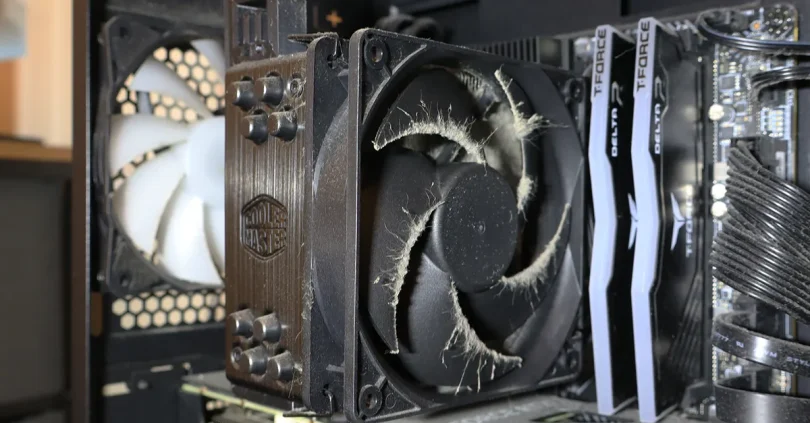
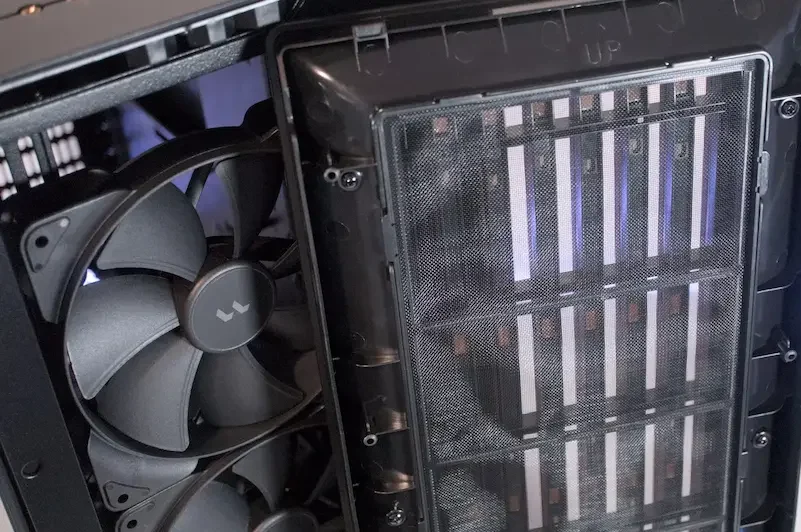
Dust, dirt, and poor airflow can cause your PC to overheat, slow down, or even fail. Regular cleaning and monitoring hardware components ensures your system remains cool, stable, and performs optimally. Proper maintenance can also extend the lifespan of your PC components. PC Maintenance Guide 2026
Step 1: Clean Your PC Internally
- Turn off and unplug your PC before cleaning PC Maintenance Guide 2026
- Open the case (desktop) or laptop panel carefully PC Maintenance Guide 2026
- Use compressed air to blow dust off:
- Fans
- Heat sinks
- Vents
- Power supply
- Avoid using a vacuum inside the PC, as static electricity can damage components
Step 2: Clean External Components
- Wipe your keyboard, mouse, and monitor with a soft, lint-free cloth
- Use mild cleaning solutions for stubborn stains
- Keep vents and air intakes free from obstruction
Step 3: Monitor Temperatures
- Use software tools like HWMonitor, MSI Afterburner, or Core Temp
- Check CPU, GPU, and motherboard temperatures
- Ideal operating temperatures vary by component; generally:
- CPU: 30–60°C (idle), up to 85°C under load PC Maintenance Guide 2026
- GPU: 30–65°C (idle), up to 85–90°C under load PC Maintenance Guide 2026
- High temperatures may indicate dust buildup or poor airflow PC Maintenance Guide 2026
Step 4: Improve Cooling
- Ensure proper airflow inside your PC case:
- Arrange cables neatly
- Add case fans if necessary
- Avoid placing the PC in enclosed spaces
- Use laptop cooling pads for better airflow on laptops
- Replace old thermal paste on CPUs if temperatures remain high
Step 5: Regular Hardware Checks
- Inspect RAM, GPU, storage drives, and power supply for visible issues
- Listen for unusual noises (like loud fans or clicking sounds)
- Check for signs of overheating or component wear
Benefits of Cleaning and Monitoring Hardware
- Reduces overheating and system crashes
- Improves PC performance and stability
- Extends the lifespan of components
- Prevents costly hardware repairs
By keeping your PC clean, cool, and well-monitored, you can ensure it runs efficiently and reliably throughout 2026, while minimizing the risk of hardware damage and performance issues.
Backup Your Data
Why Backups Are Important
Data loss can happen unexpectedly due to hardware failure, malware attacks, accidental deletion, or software errors. Regular backups ensure that your important files—documents, photos, videos, and work projects—are safe and recoverable, giving you peace of mind.
Step 1: Identify What to Backup
- Focus on important files: documents, photos, videos, music, work projects
- Include application settings and browser bookmarks if necessary
- Avoid backing up unnecessary files like temporary files or system caches
Step 2: Use External Storage
- Copy your important files to external hard drives or SSDs
- Recommended: dedicated backup drives that stay unplugged except during backup
- Organize files in folders for easy access and recovery
Step 3: Use Cloud Storage
- Services like OneDrive, Google Drive, or Dropbox provide off-site backups
- Enable automatic syncing to keep files updated
- Cloud backups protect against local hardware failures and theft
Step 4: Schedule Regular Backups
- Weekly or monthly backups are ideal for most users
- Use Windows Backup and Restore or third-party tools to schedule automatic backups
- Example: Set your backup to run every Sunday night while your PC is idle
Step 5: Create System Images (Optional)
- A system image is a complete copy of your Windows installation, settings, and programs
- Use Settings > Backup & Restore > Create a system image
- This allows you to restore your entire system in case of a critical failure
Benefits of Regular Backups
- Protects against data loss from crashes, malware, or accidental deletion
- Enables quick recovery of files and system settings
- Reduces stress and downtime caused by unexpected failures
- Keeps your PC running smoothly knowing your data is safe
By regularly backing up your data, you ensure that important files are always safe, making your PC maintenance routine complete and secure for 2026.
Scan for Malware and Viruses
Why Malware Scans Are Crucial
Malware and viruses are one of the leading causes of slow PCs, data loss, and unexpected crashes. These malicious programs can steal personal information, hijack your system resources, or even make your PC unusable. Regular malware scanning is a proactive way to protect your PC and ensure it runs efficiently and securely.
Step 1: Use Built-in Windows Security
- Open Windows Security from the Start menu
- Click Virus & threat protection
- Run a Quick scan to check commonly infected areas or a Full scan for a thorough examination of all files
- Enable Real-time protection to automatically block threats as they appear
- Tip: Use Cloud-delivered protection in Windows Security for faster detection of new threats
Step 2: Use Trusted Third-Party Antivirus and Anti-Malware Tools
- Popular tools include Malwarebytes, Bitdefender, Kaspersky, or Avast
- Run a full-system scan weekly or bi-weekly
- Keep antivirus databases up-to-date to detect the latest threats
- Example: Malwarebytes is effective at removing spyware or PUPs (Potentially Unwanted Programs) that standard antivirus may miss
Step 3: Schedule Automatic Scans
- Use your antivirus program to schedule scans during idle hours
- Automatic scans ensure your system is continuously protected without manual effort
- Check scan reports to stay informed about detected threats
Step 4: Avoid Malware Risks
- Download software only from trusted websites or official sources
- Avoid clicking on suspicious links or email attachments
- Keep browsers, plugins, and Windows updated to reduce security vulnerabilities
- Example: Browser pop-ups claiming “Your PC is infected” are usually fake malware attempts
Step 5: Remove Detected Threats
- Quarantine or delete threats as recommended by your antivirus
- Restart your PC after major removals to ensure the system is clean
- Re-scan your system if necessary to confirm all threats have been removed
Step 6: Extra Tips for Ongoing Protection
- Use a standard user account instead of an administrator account for daily use to limit malware access
- Enable firewall protection via Windows Security or your router
- Consider browser security extensions that block malicious sites and downloads
Benefits of Regular Malware Scans
- Keeps your PC fast, stable, and responsive by removing resource-hogging malware
- Protects sensitive files, passwords, and personal information
- Reduces the risk of unexpected crashes or data corruption
- Provides peace of mind for safe internet browsing, online banking, and downloads
By implementing these steps, you can maintain a secure, high-performing PC, prevent malware from causing issues, and ensure your PC stays reliable throughout 2026.
How often should I perform PC maintenance?
For optimal performance, perform basic maintenance tasks monthly, such as cleaning your hard drive, checking startup programs, and running malware scans. More thorough maintenance like disk health checks or system file repairs can be done every 2–3 months.
Can beginners maintain a PC without professional help?
Yes! Most PC maintenance tasks are simple and safe to perform, even for beginners. Steps like updating Windows, cleaning temporary files, backing up data, and running antivirus scans are straightforward and well-guided in this guide.
Conclusion:
Maintaining your PC doesn’t have to be complicated or time-consuming. By following simple steps like updating Windows and drivers, cleaning your hard drive, managing startup programs, optimizing RAM, monitoring hardware, scanning for malware, and backing up your data, you can keep your system fast, secure, and reliable throughout 2026.
Regular maintenance helps prevent common problems such as slow performance, crashes, data loss, and overheating, while also extending the lifespan of your hardware. Even beginners can perform these tasks safely with a little guidance and consistency.
By making PC maintenance a regular habit, you ensure a smooth, high-performing, and worry-free computing experience. A well-maintained PC is not only faster but also more secure and ready for any task, from daily work to gaming and creative projects.